
Tesla key card and phone key explained
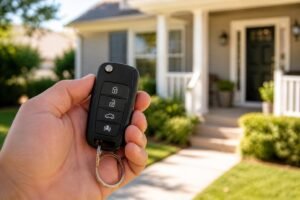
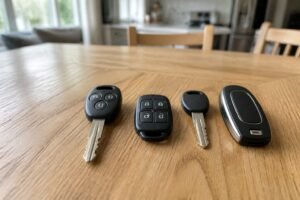
Tesla doesn't give you a traditional key. Your phone is the main key, two key cards are the backup, and a key fob is an optional extra. Here's how each one works, how to add or remove keys, and which backup is worth having.
It covers the Model 3, Model Y, Model S, Model X and Cybertruck. Older 2012–2020 Model S and 2015–2020 Model X cars don’t support phone key.
- The three types of Tesla key
- Where to tap the key card
- How to add or remove a key
- Which backup to carry
Key takeaways
- Phone key is the main key Your phone connects to the car over Bluetooth and unlocks it as you walk up.
- Key cards are the backup Tesla provides two RFID key cards; you tap them on a reader.
- A fob is optional Key fobs are sold separately and add physical buttons.
- You add keys yourself New keys are paired on the touchscreen by scanning an existing key, with no dealer visit.
The three types of Tesla key
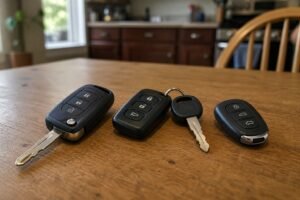
Tesla keys at a glance
- Phone key
Your phone, signed in to the Tesla app, connects over Bluetooth. It locks and unlocks the car automatically as you walk up and away, and it’s Tesla’s preferred key.
- Key card
A credit-card-sized RFID card. Tesla provides two. It has no battery and must be tapped on a card reader; it doesn’t unlock automatically.
- Key fob
An optional accessory with buttons. On the Model 3 and Y it’s a small car-shaped fob that can also unlock passively as you approach.

How to use a Tesla key card
Unlock and drive with a key card
-
Tap the door pillar
Hold the card flat against the reader on the driver’s side door pillar, just below the Autopilot camera on the Model 3 and Y. You may need to touch it for a second or two.
-
Get in
When the car reads the card, the lights flash and the doors unlock.
-
Drive within two minutes
Press the brake to power up and drive. If you wait longer than two minutes, re-authenticate.
-
Re-authenticate on the console
On the Model 3 and Y, place the card on the center console behind the cupholders. On the Model S, Model X and Cybertruck, the reader is at the phone chargers.
Setting up phone key
Tesla's vehicle keys support page lists what phone key needs:
- The latest Tesla app, signed in to your Tesla Account as the owner or a driver.
- Bluetooth on, and set up while you're near the car.
- The Tesla app's location permission set to Always Allow.
- Airplane mode and power-saving modes turned off.
- Allow Mobile Access turned on in the car under Controls > Safety.
Tesla also advises against third-party Tesla apps, which can interfere with the phone key.
How to add or remove a key
Add a key card or fob on the touchscreen
-
Open the key list
On the touchscreen, go to Controls > Locks > Keys > Add Key.
-
Scan the new key
On the Model 3 and Y, place it on the console behind the cupholders; on the Model S, X and Cybertruck, use the reader at the phone chargers.
-
Confirm with an existing key
Scan a key card or fob that’s already paired.
-
Name it
The new key appears in the list; you can rename it.
Owners can also add a key card from the Tesla app (Security & Drivers > Add Key Card) with app version 4.29.0 or later and vehicle software 2022.40 or later.
To remove a lost key, go to Controls > Locks, tap the trash icon next to it, and scan an authenticated key to confirm. Do this straight away if a card or fob goes missing.
Backup keys worth having

A spare RFID card to pair as a backup key
A single replacement key card listed for the Model 3, Model Y and 2021-on Model S and X. Key cards have no battery, so they’re the most reliable backup when your phone dies. You add it on the touchscreen under Controls > Locks > Keys.
- No battery to go flat
- Fits in a wallet
- Pair it yourself
- No automatic unlock: you must tap it
- Third-party, not Tesla-made

A car-shaped fob with lock, unlock and trunk buttons
A third-party key fob listed for the Model 3 and Model Y, with the familiar car-shaped design and buttons for the locks, trunk and frunk. You pair it yourself at the touchscreen. Tesla’s own fob for the 2024-on ‘Highland’ Model 3 differs from earlier ones, so check the listing covers your car’s year.
- Pair it yourself: no dealer visit
- Buttons for locks, trunk and frunk
- Uses a common CR2032
- Not made by Tesla
- Check compatibility with your model year

Keeps your key card on your keyring
A soft silicone sleeve that keeps the key card on a keyring, with a slot for an AirTag so you can find it. You can tap the card on the reader without taking it out.
- Keeps the card handy
- AirTag slot
- Low cost
- Adds bulk to a wallet card

If your phone key stops working, see our guide to the Tesla key not detected problem. For prices, see Tesla key fob cost explained.
Tesla key card and phone key FAQ
Does Tesla give you a key fob?
Not on the Model 3 or Y: you get two key cards and use your phone as the main key. A fob is sold separately.
Where do I tap the Tesla key card?
On the reader on the driver’s side door pillar to unlock, and on the console reader (or at the phone chargers on S, X and Cybertruck) to drive.
Why does the car ask me to tap the card again?
After you unlock with a card you have two minutes to start driving. After that, re-tap it on the console reader.
Can I use my phone without the app open?
Yes, if Bluetooth is on and the app’s location permission is set to Always Allow.
How do I remove a lost key?
Controls > Locks, tap the trash icon next to the key, then scan an authenticated key to confirm.
The bottom line
- Phone key is the main key
- Always carry a key card
- Add keys on the touchscreen
- Delete lost keys straight away
A Tesla uses your phone as its main key, with key cards as a battery-free backup and an optional fob for physical buttons. Carry a key card, keep phone key settings on Always Allow, and remove any lost key from the touchscreen straight away.